
Introduction
Pinterest is basically a giant digital mood board. It’s a visual search engine where you can find, save, and organize ideas for just about anything. Instead of just reading text, you use “Pins”—which are images or videos—to keep track of things that inspire you.
Have you ever spent hours scrolling through Google trying to find that one perfect recipe or home decor idea, only to lose it forever? It’s frustrating. That’s exactly why millions of people use Pinterest to turn their “one day” dreams into organized plans they can actually find again.
In this guide, I’m going to break down everything you need to know to get started. We’ll cover how to set up your profile, how to create your first board, and the best way to save Pins. By the end, you’ll be navigating the platform like a total pro.
What Is Pinterest & How It Works
Pinterest is a visual discovery tool that works more like a search engine than a social media site. Instead of status updates, people use “Pins,” which are images or videos that link back to websites. You can think of it as a massive, digital filing cabinet for all the things you find interesting on the internet.
The way it works is pretty simple. When you see something you like, you “Pin” it to a “Board” that you’ve created for a specific topic, like “Dream Kitchen” or “Travel Tips.” As you save things, Pinterest’s algorithm learns your style and starts showing you even more ideas that match your taste.
How to Use Pinterest?
Getting started on Pinterest is all about exploring and saving. First, you search for a topic you love, like “healthy snacks” or “DIY crafts.” When you find an image you like, you click the “Save” button to tuck it away for later. It is a great way to keep your ideas organized and easy to find.
To keep things tidy, you should group your Pins into different Boards. Think of Boards as specific folders for your projects. Here are the basic steps to master the platform:
- Create a Profile: Sign up and follow topics that interest you.
- Build Boards: Make separate categories for things like recipes, fashion, or travel.
- Save Pins: Use the “Save” button on any image you want to keep.
- Use the Search Bar: Type in specific keywords to find new inspiration.
- Follow Others: Follow friends or creators who share your style.
How to Create a Pinterest Account (Step-by-Step)
Setting up your account is quick and totally free. To save time, you can use your email address or link it to your Google or Facebook accounts. Once you enter your basic details like your age and gender, you’re officially in. Pinterest will then ask you to pick a few interests so it can start filling your feed with things you actually like.
To get your profile ready for action, just follow these simple steps. It only takes a couple of minutes to get everything running:
- Visit the Site: Go to Pinterest.com or download the app on your phone.
- Sign Up: Enter your email and create a password you’ll remember.
- Pick Your Interests: Choose at least five categories to help the app learn your style.
- Confirm Your Email: Check your inbox and click the link to verify your new account.
- Your profile picture helps your friends recognize you.
Pinterest Dashboard Explained for Beginners
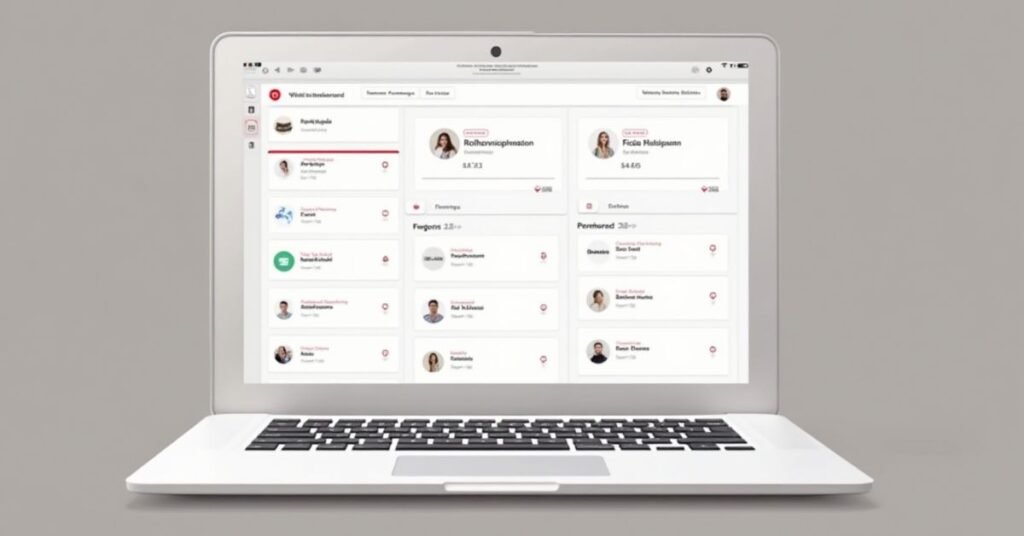
The Pinterest dashboard is your main control center. When you log in, the first thing you see is your Home Feed, which is filled with ideas Pinterest thinks you’ll love based on your interests. At the top of the screen, you’ll find a simple navigation bar that lets you jump between your feed, a search bar for finding new topics, and your own profile.
Navigating the dashboard is easy once you know where the main buttons are. On the top right, you’ll see icons for your messages, notifications, and your profile settings. If you’re using a business account, you’ll also see an “Analytics” tab where you can track how many people are looking at your Pins.
| Feature | What It Does | Where to Find It |
| Home Feed | Shows Pins based on your interests and people you follow. | Main screen (Home icon) |
| Search Bar | Helps you find specific ideas using keywords. | Top center of the screen |
| Create Button | The “plus” (+) icon used to make new Pins or Boards. | Top left or bottom center |
| Notifications | Alerts you when someone saves your Pin or follows you. | Bell icon on the top right |
| Messages | Friends can send you private Pins or chats here. | Speech bubble icon on the top right |
| Your Profile | Shows your saved Boards and created Pins. | Your profile picture (top right) |
| Analytics | Tracks views, clicks, and saves (for Business accounts). | Top left menu bar |
What Are Pinterest Boards & How to Use Them?
Think of Pinterest Boards as digital scrapbooks or folders. Instead of having all your saved ideas in one big, messy pile, you use Boards to stay organized. For example, you can have one Board for “Healthy Breakfasts” and another for “Dream Vacations.” This makes it super easy to find exactly what you’re looking for later on.
Creating and using Boards is very straightforward. You can make them public for everyone to see, or keep them “Secret” if you’re planning a surprise or a private project. Here’s how you can make the best use of them effectively:
- Categorize Your Ideas: Give each Board a clear name so you know what’s inside.
- Use Sections: You can even create smaller folders inside a Board to stay extra organized.
- Group Boards: Invite your friends or family to add Pins to a shared Board for group planning.
- Edit Anytime: You can move Pins between Boards or change your Board names whenever you want.
- Set a Cover Image: Pick your favorite Pin to be the “face” of your Board so it looks great.
How to Pin Content on Pinterest Correctly
Pinning is just another way of saying “saving” something you find. When you hover over an image you like, a red “Save” button will pop up. Clicking this button lets you choose which Board you want to put it on. Doing it correctly means making sure you put the Pin in the right category so you can find it in seconds when you actually need it.
You can also create your own Pins from scratch by uploading photos from your phone or computer. When you do this, it’s important to add a clear title and a short description. This helps other people—and Pinterest itself—understand what your Pin is all about. Here are the best ways to Pin like a pro:
- Check the Link: Before saving, click the image to make sure it leads to a real, helpful website.
- Add a Description: Use simple words to describe what is in the image.
- Pick the Right Board: Don’t just save everything to one place; categorize as you go.
- Use the Browser Extension: Install the Pinterest button on your web browser to save things from any website instantly.
- Upload High-Quality Images: If you are making your own Pin, use clear, vertical photos for the best look.
Best Image Size & Design Tips for Pinterest
Pinterest is a visual platform, so your images need to look sharp to get noticed. The best shape for a Pin is vertical rather than horizontal. You should aim for a 2:3 aspect ratio, which usually means 1000 x 1500 pixels. This size fills up the screen perfectly as people scroll through their mobile phones, making your content stand out.
When it comes to design, keep things clean and easy to read. Use bright, high-quality photos and add a little bit of text overlay to tell people what the Pin is about. Make sure your font is big and bold so it can be read on a small screen. Using warm colors and showing someone actually using a product often helps get more clicks from your followers.
Pinterest SEO: Writing Titles & Descriptions
Pinterest is basically a search engine, just like Google. This means the words you use in your titles and descriptions are very important. When you use the right keywords, Pinterest knows exactly who to show your Pins to. Think about what your best friend would type into a search bar to find your content, and use those exact phrases.
Your title should be catchy and clear, while your description provides more detail. You have about 500 characters for the description, but the first few sentences are the most important. Using natural language instead of just a list of words makes your Pins look more professional and human. Here is how to nail your Pinterest SEO:
- Be Specific: Instead of just “Cake,” try “Easy Chocolate Birthday Cake Recipe.”
- Use Natural Sentences: Write for humans first, but include your main keywords naturally.
- Avoid “Keyword Stuffing”: Don’t just post a long list of random words; it looks like spam.
- Front-load Important Info: Put the most important keywords at the very beginning of your title.
- Include a Call to Action: Tell people exactly what to do, like “Click to read more” or “Save for later.”
Pinterest Keyword Research for Beginners
Keyword research is just a fancy way of saying you are finding out what people are actually typing into the search bar. Since Pinterest is a visual search engine, it uses these words to decide which Pins to show to which users. To start, you just need a “seed” idea—like “living room decor”—and then you watch what other words Pinterest suggests to you as you type.
The goal is to find “long-tail keywords,” which are longer and more specific phrases. Instead of just trying to rank for a huge word like “recipes,” you might aim for “easy vegetarian dinner recipes for beginners.” These specific terms have less competition, which makes it much easier for your Pins to show up at the very top of the results.
| Method | How to Do It | Why It Works |
| Search Autocomplete | Type your main word in the search bar and see the drop-down list. | Shows you the most common phrases people are searching for right now. |
| Guided Search Bubbles | Look at the colored tiles that appear under the search bar after you hit enter. | Helps you narrow down your topic into specific sub-categories. |
| Pinterest Trends | Visit the official Trends tool to see what’s popular this month. | Perfect for planning content ahead of holidays or seasonal changes. |
| Competitor Research | Click on top-ranking Pins and look at the words they use in their titles. | You can see exactly what language the “winners” in your niche are using. |
| Pinterest Ads Tool | Start a “fake” ad to see the exact search volume for different words. | Gives you the most accurate data on which keywords get the most traffic. |
How Often Should You Pin?
Consistency is much more important than quantity on Pinterest. You don’t need to post fifty times a day to see results. In fact, pinning a few times every single day is better than dumping thirty Pins at once and then disappearing for a week. Aim for a steady rhythm that you can actually keep up with without feeling overwhelmed.
Most experts suggest pinning between one and five times a day. If you are just starting out, even one high-quality Pin per day is a great goal. The key is to make sure your Pins are fresh and helpful to your audience. Pinterest loves active users who share new ideas regularly, so try to stay active throughout the week to keep the momentum going.
Common Pinterest Mistakes Beginners Make
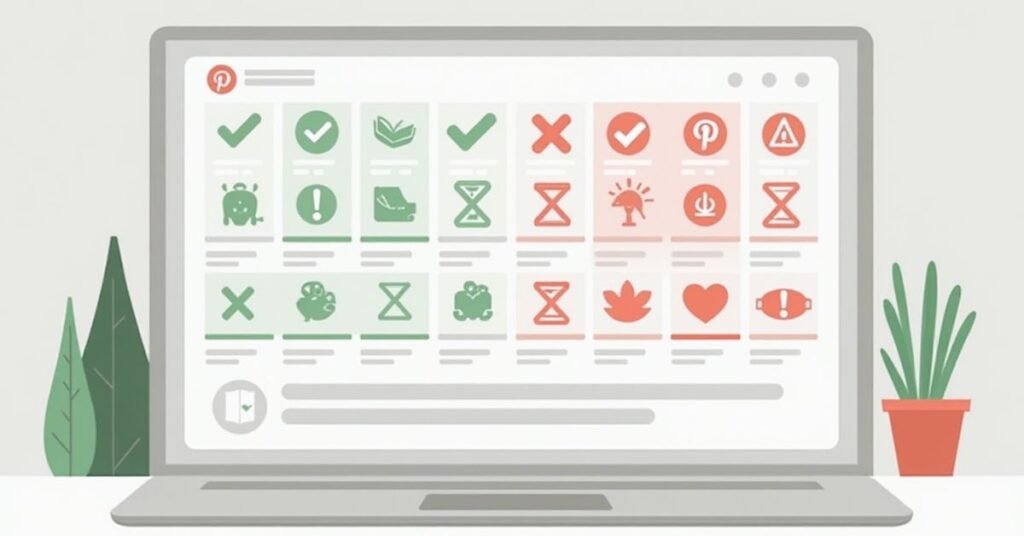
It is very easy to treat Pinterest like Instagram or Facebook, but that is a mistake. Many beginners post square photos or random life updates that don’t offer any value to others. Another common slip-up is forgetting to add links to your Pins. If a user clicks your image and it doesn’t lead anywhere, they will likely get frustrated and leave your profile.
Being “spammy” is another quick way to hurt your rankings. If you save the same image to ten different boards all at once, Pinterest might flag your account. It is much better to be thoughtful and slow with your sharing. Here are a few more things you should try to avoid:
- Using Horizontal Images: These look tiny on mobile and get ignored by most users.
- Ignoring Keywords: If you don’t write a description, Pinterest won’t know how to show your Pin to anyone.
- Broken Links: Always double-check that your Pin leads to a working website or blog post.
- Over-Pinning: Don’t dump 50 Pins in five minutes; it clutters your followers’ feeds.
- No Profile Bio: If your profile is empty, people are less likely to hit the “Follow” button.
Conclusion
In the end, Pinterest is a powerful tool once you get the hang of it. It’s all about being creative and staying organized with your ideas. Don’t worry about being perfect right away. The more you explore and save what you love, the more natural it will feel to use every day.
Just remember to be consistent and keep your audience in mind. With a little bit of patience and the right keywords, you’ll see your profile grow in no time. Now that you know the basics, it’s time to start pinning and bringing your own ideas to life.
FAQs
1. Is Pinterest free to use?
Yes, Pinterest is completely free for both personal users and businesses. You can create as many Boards and save as many Pins as you like without paying a cent.
2. What is the difference between a Pin and a Board?
A Pin is an individual image or video you’ve saved, while a Board is the folder where you group those Pins together. Think of it like a photo and the photo album it lives in.
3. Can I keep my Pins private?
Yes, you can create “Secret Boards” that only you can see. These are perfect for planning private events or saving ideas you aren’t ready to share with the world yet.
4. How do I get more followers on Pinterest?
The best way is to Pin high-quality, vertical images and use relevant keywords in your titles. Consistency is key—the more you Pin, the more likely people are to find and follow you.
5. Do Pins ever expire?
No, Pins never “die” or disappear like stories on other apps. A Pin you save today can continue to be found and clicked on by users for years to come.

Welcome to Digital Pin Media! I’m Usama Ijaz, an AI-Powered SEO, and Content Write with 4 years of experience.
I help websites rank higher, grow traffic, and look amazing. My goal is to make SEO and web design simple and effective for everyone.
Let’s achieve more together!





One Comment